Free screen recorder for Windows
Record the screen. Edit it by deleting words.
DeskRecord records screens, games and devices on the OBS capture engine. Then it transcribes on your own PC, so you cut a video the way you edit text.
- Free, GPL-2.0
- No watermark
- No time limit
- Windows 10 and 11
Six parts in one small app
- 01RecordOne key starts itF12 records, Shift+F12 pauses. Seven capture modes at 24 to 240 fps.
- 02OverlaysDrawn into the videoWebcam in 20 shapes, blur boxes, pen and arrows, keystrokes, logo and live text.
- 03AudioTwo sources, separate tracksComputer sound and microphone, mixed or kept apart for editing.
- 04AI StudioTranscribes on your PCwhisper.cpp runs offline. Optional Claude tools translate, find highlights and summarise.
- 05EncoderYour GPU does the workNVIDIA NVENC H.264 and HEVC, AMD AMF, or x264 on the CPU.
- 06EngineThe OBS Studio corelibobs 33 captures monitors, windows, games and devices.
Six parts. One portable folder of about 110 MB. No account.
Capture
Seven ways to point it at something
Pick a mode and press REC. This panel behaves like the app: drag the frame, choose a monitor, change the frame rate.
DeskRecord 2026-11-12 21-17-27.m4a
Record part of the screen. Drag the blue frame to move it, pull its corner to resize.
Drag the frame. Arrow keys nudge it.
Ready
Overlays
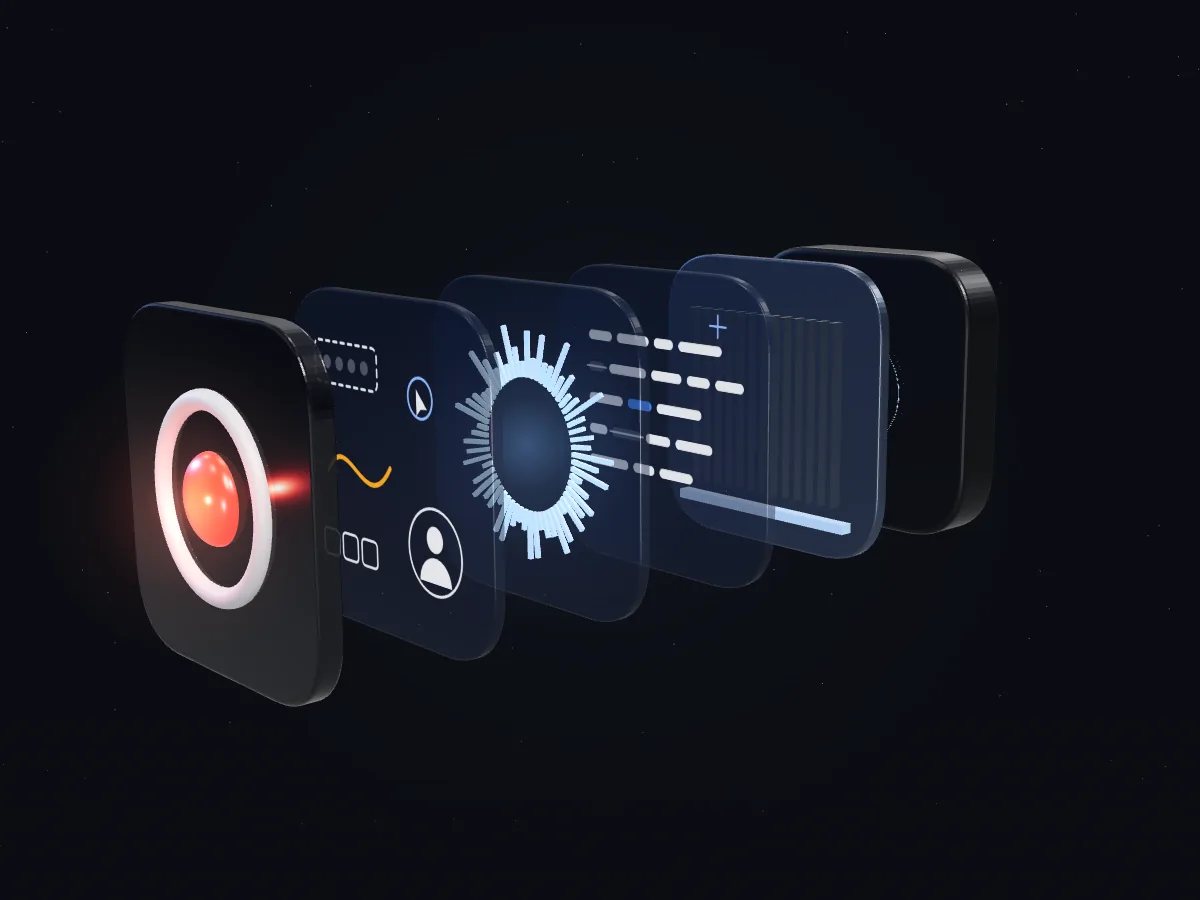
A recording is a stack of layers
Everything you add is drawn into the video while you record. Switch the layers on and off, then pull the stack apart to see where each one sits.
AI Studio
Cut the video by cutting the text
Speech becomes text on your own computer. Click a word and the frames behind it go with it. This editor is a working model with sample data; nothing leaves your browser.
Click any word to cut it. Click again to bring it back.
Show subtitles in
Save as a file
Subtitles follow your edits: lines you cut are left out and the timing shifts to match.
These tools send the transcript text, never the video or audio, to Claude with your own API key.
Highlights
Summary and quiz
Offline transcription
whisper.cpp runs on your CPU. After the one-time model download it needs no internet. Arabic and more than 90 other languages.
Edit by text
Untick a line or click words to cut them. One click removes fillers such as um and uh, or every silence longer than the length you set.
Smart Zoom
Clicks recorded with the video become smooth zoom-ins on the area you worked in. Previewed in the player, rendered on export.
Subtitles
Export SRT, VTT or TXT, or burn them into the video. They always match the cut you made.
Translation
Claude translates the subtitles into another language while keeping every cue and its timing.
Highlights
Choose a reel length. Claude picks the strongest moments and the editor keeps only those.
Summary, chapters, quiz
One click writes a web page with a summary, key points, chapters and a five-question quiz, saved next to the video.
Speaker labels
Recordings with separate audio tracks label the microphone as You and computer sound as Others.
Automation
It can run without you
Schedule a recording, tell it when to stop, and choose what the PC does afterwards.
Scheduled recording
Next recording
Up to 100 schedules. DeskRecord starts and stops them itself while it is running.
Auto complete
Stops after 60 minutes of recording.
After the recording
The app stays open and the editor appears.
- Countdown before recording
- Start recording when the app opens
- Pause while the mouse and keyboard are idle
Global hotkeys
They work everywhere, even when DeskRecord is in the background. Each one can be changed.
- F12
- Start or stop recording
- Shift+F12
- Pause or resume
- Ctrl+Shift+F12
- Cancel and discard
- F11
- Screenshot
- Ctrl+Alt+D
- Drawing tools
- Ctrl+Alt+W
- Webcam overlay on or off
The app
Every screen, as it ships
These are unedited screenshots of version 0.1.0.
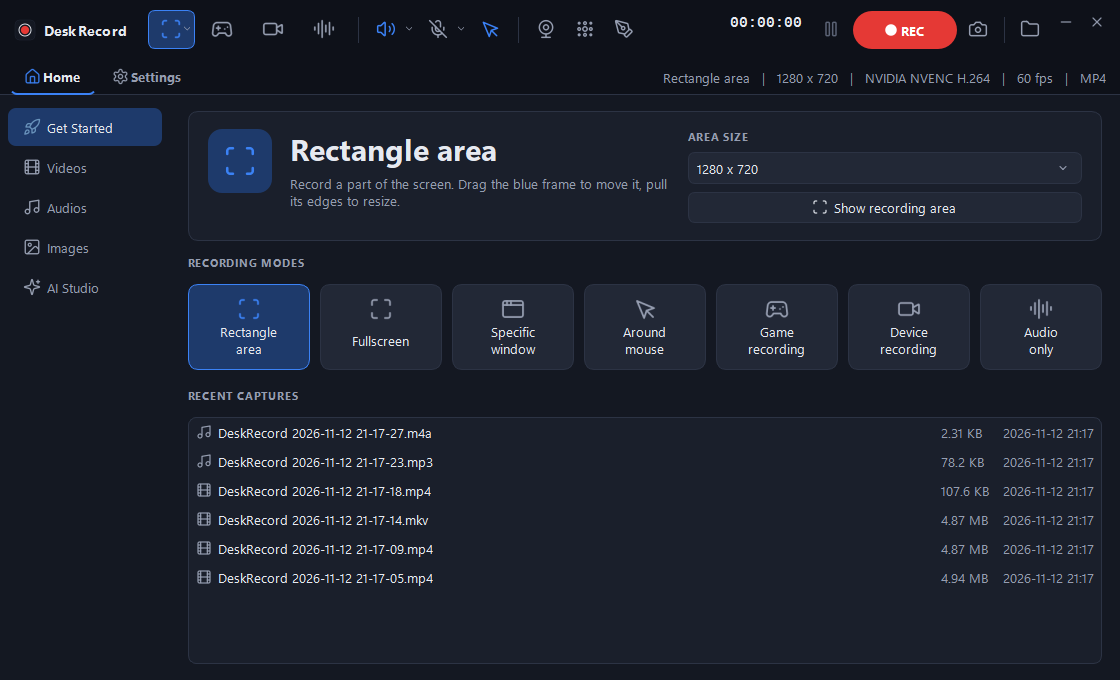
01Home: pick a mode and see your latest captures 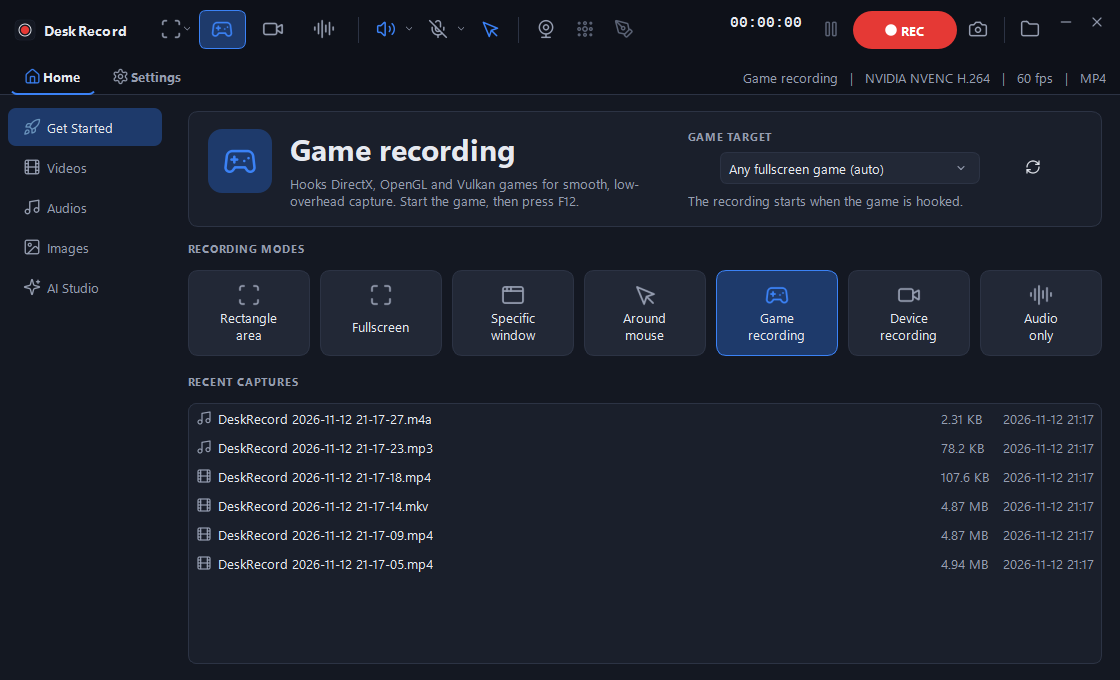
02Game recording waits for the game and hooks it 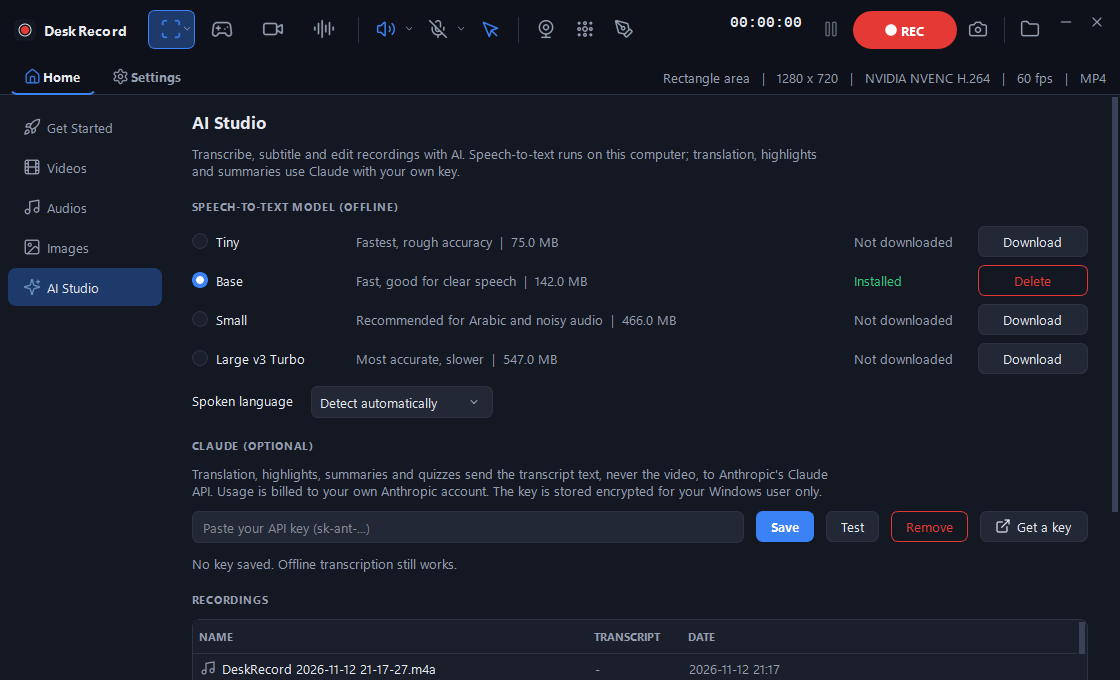
03AI Studio: speech models, language and the optional Claude key 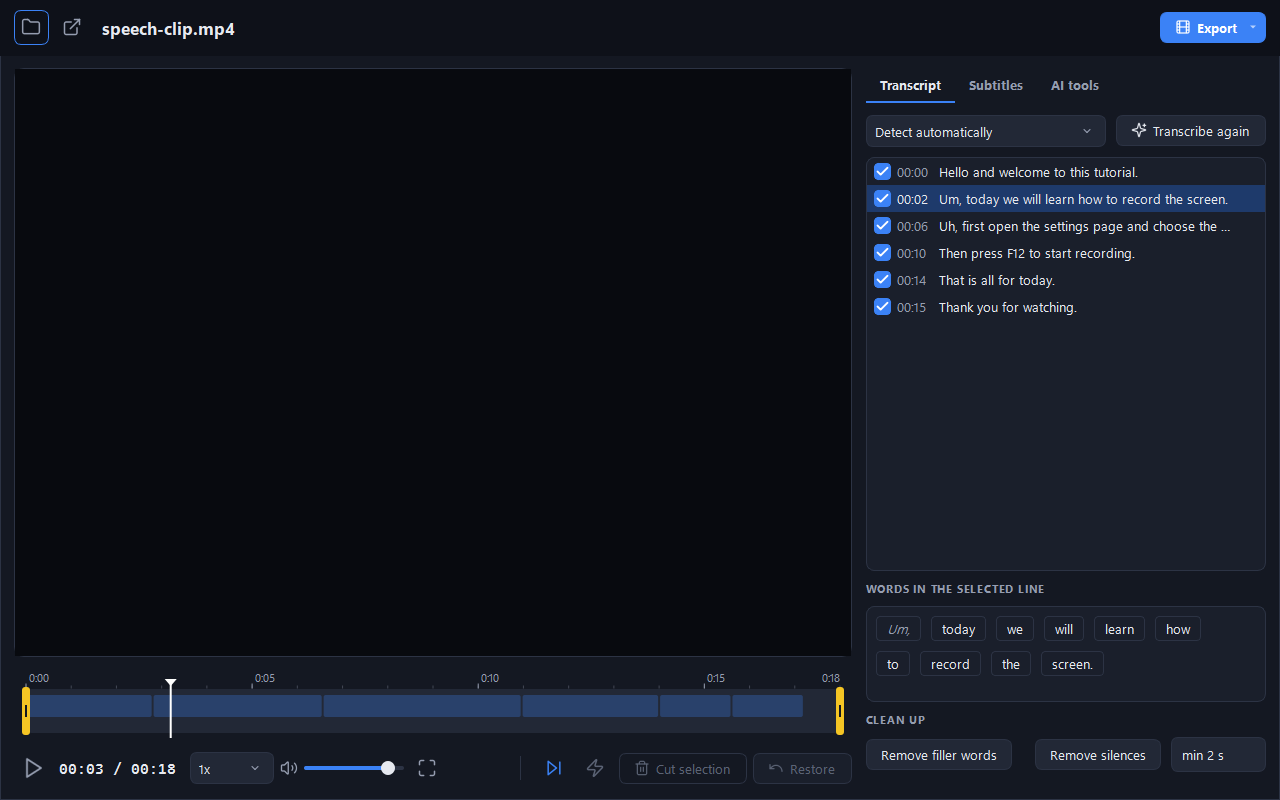
04Editor: transcript beside the player, words as buttons 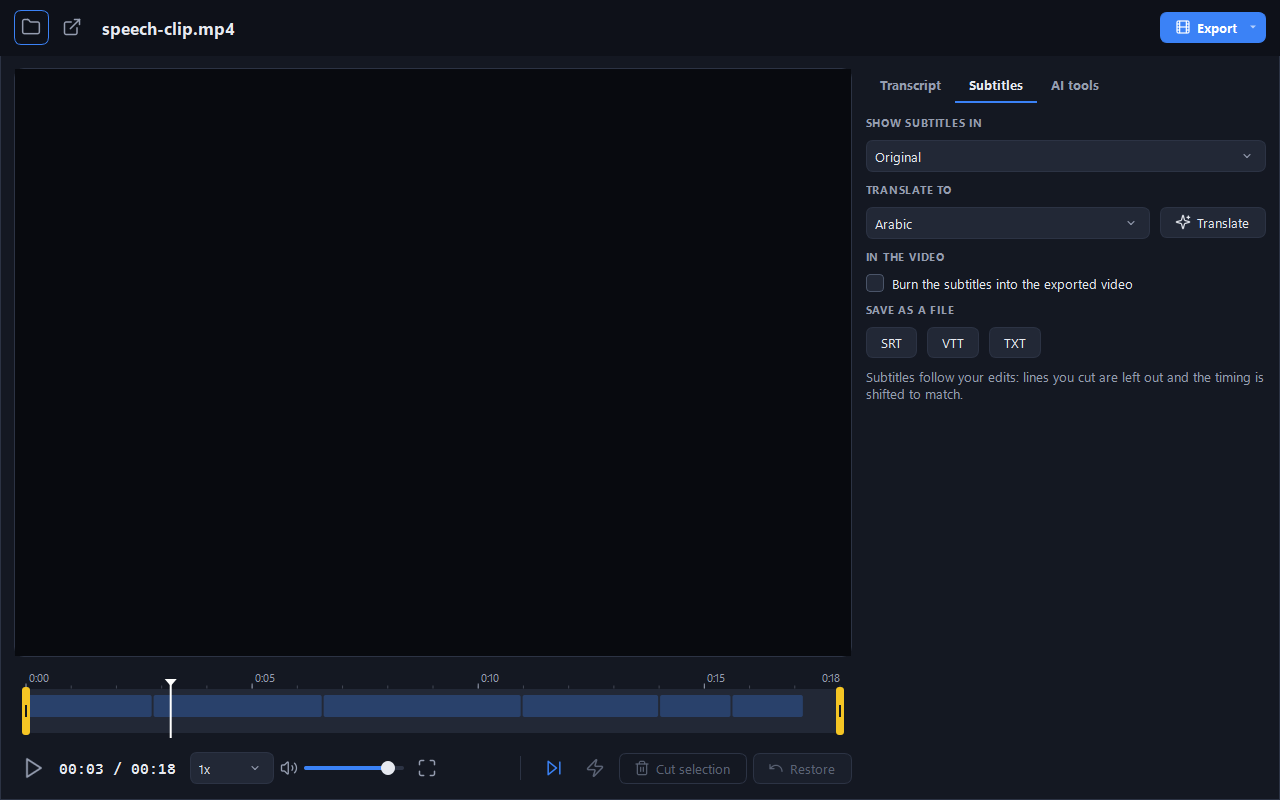
05Editor: subtitles, translation and export formats 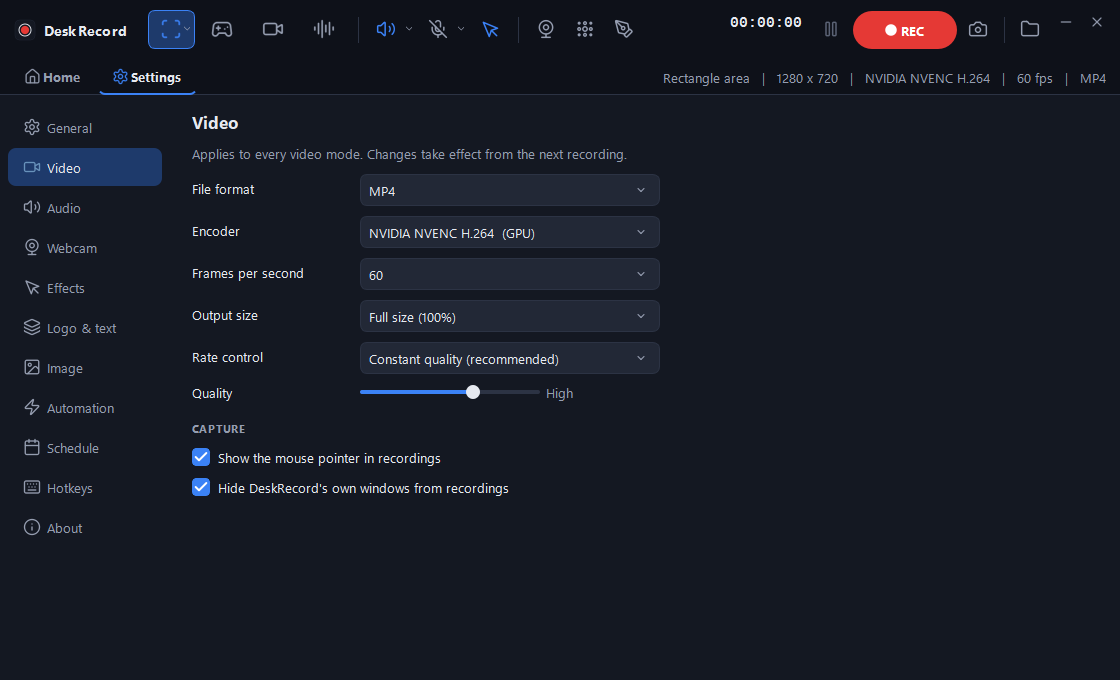
06Video settings: format, encoder, frame rate, quality 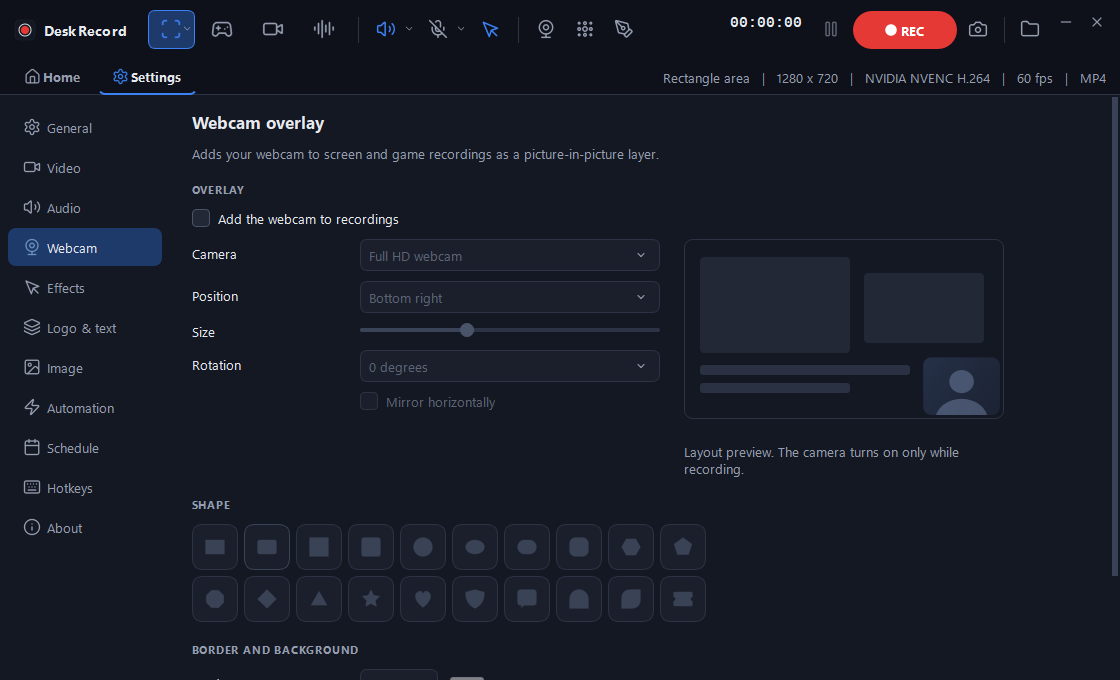
07Webcam overlay: position, size, 20 shapes 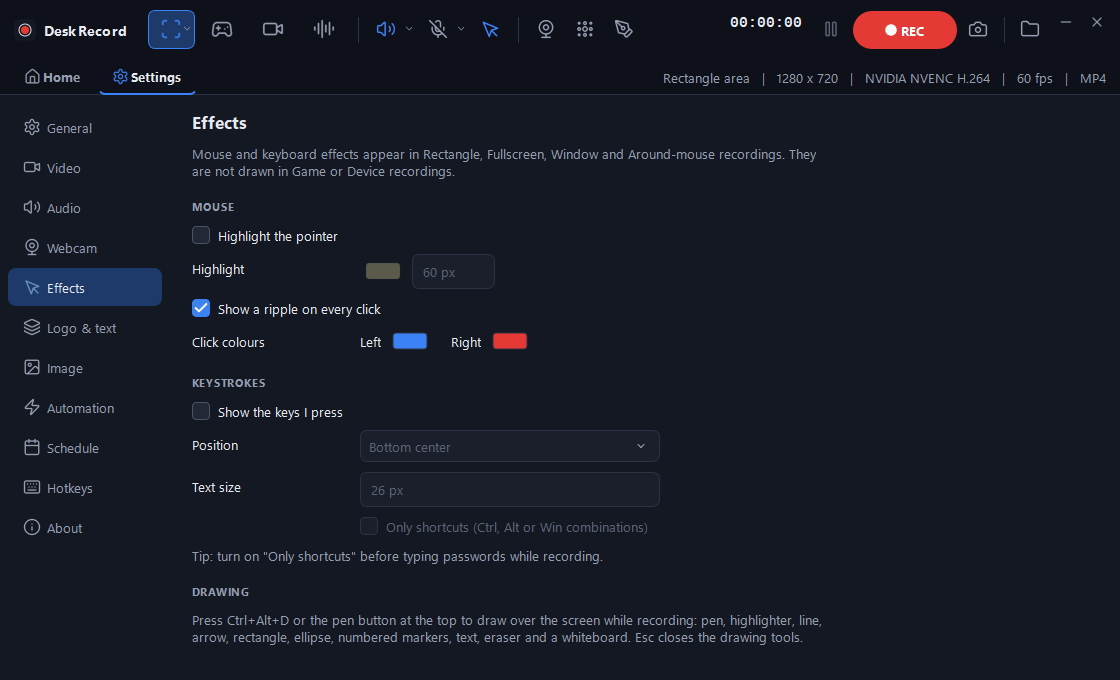
08Mouse, keystroke and drawing effects 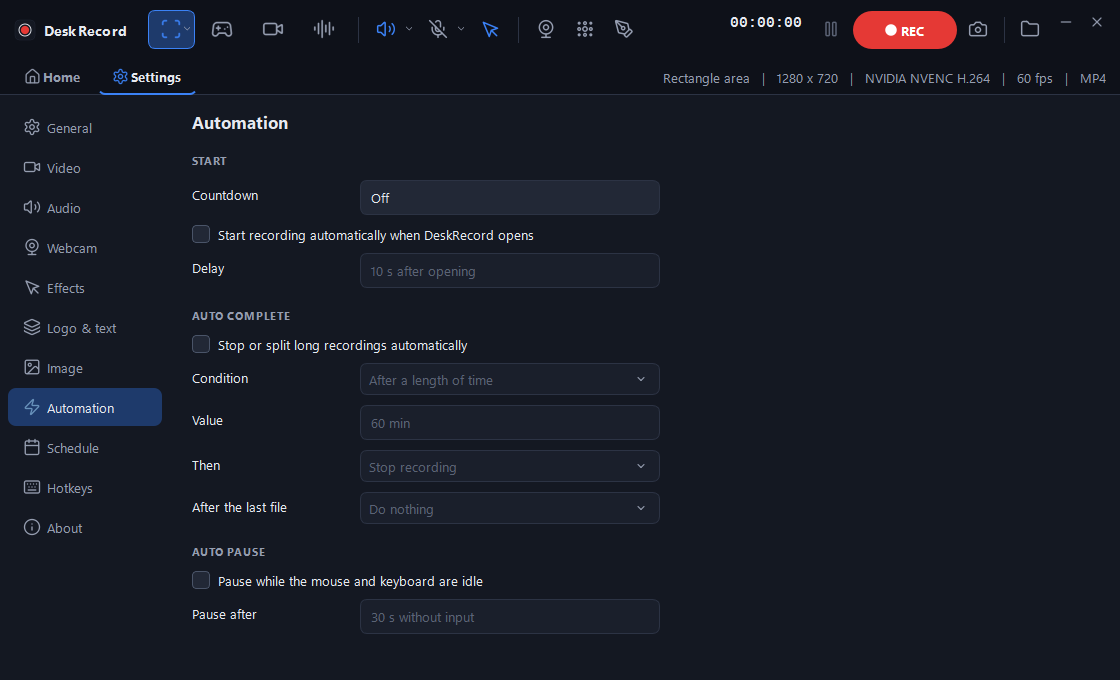
09Automation: countdown, auto complete, auto pause 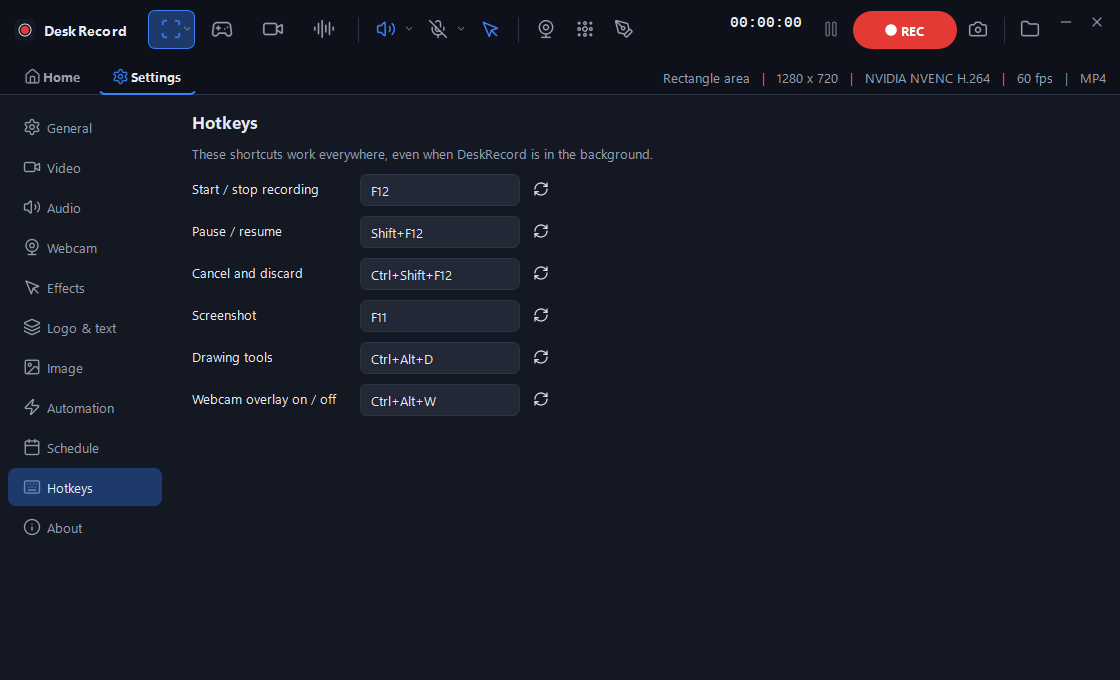
10Hotkeys you can rebind
Specifications
What it runs on and what it writes
Video
- Containers
- MP4, MKV, MOV
- Frame rate
- 24 to 240 fps
- Output size
- Full, 75% or half
- Rate control
- Constant quality, CBR or VBR
- Screenshots
- PNG, JPG, BMP
Encoders
- NVIDIA
- NVENC H.264, HEVC, and AV1 on cards that have it
- AMD
- AMF
- CPU
- x264
- Export
- NVENC when available, x264 otherwise
Audio
- Sources
- Computer sound and microphone
- Tracks
- Mixed, or one track each
- Audio only
- M4A, MP3, WAV
- Controls
- Device and volume per source
System
- Windows
- 10 or 11, 64-bit
- Graphics
- DirectX 11 capable GPU
- Disk
- About 110 MB, plus a speech model of 75 to 547 MB
- Account
- None. Settings and library stay in a local SQLite file
Built with C++, Qt 6, libobs 33, SQLite, FFmpeg and whisper.cpp.
Download
Get DeskRecord
A portable folder. Unzip it anywhere and run DeskRecord.cmd. No installer, no account.
Download for WindowsVersion 0.1.0, first public build. Windows 10 or 11, 64-bit.
- 1Unzip the folder
- 2Run DeskRecord.cmd
- 3Press F12 to record
SHA-256
895a20fe4227f1617870531590a65ec5f0936c56c1ac3c58976e478392e48c9aSource code
DeskRecord is free software under the GNU GPL, version 2 or later. The complete source of this build is here.
Download sourceWindows may show a SmartScreen notice because the build is not code-signed yet. Choose More info, then Run anyway.